
Employability Credential Quick Start Guide
How to Access & Use Your Employability Credentials
Logging In
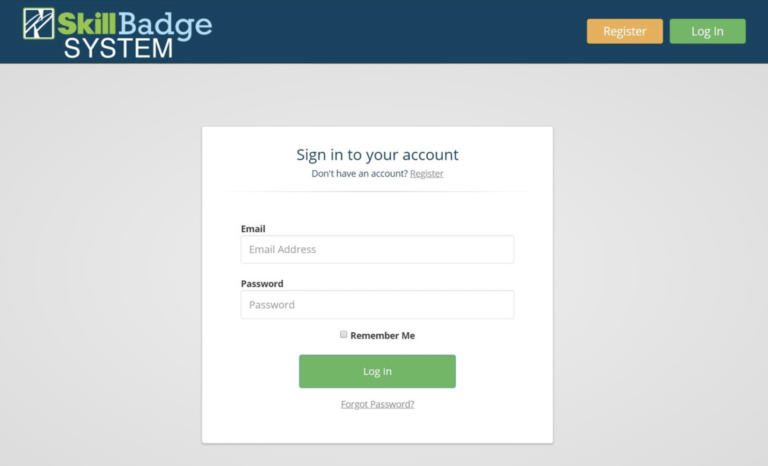
When you visit www.noctiskillbadge.org, you will be presented with a log-in screen.
If this is your first time on the site, click on the orange button to ‘Register’.
If you’ve already created an account, fill in your email and password and click ‘Log In’.
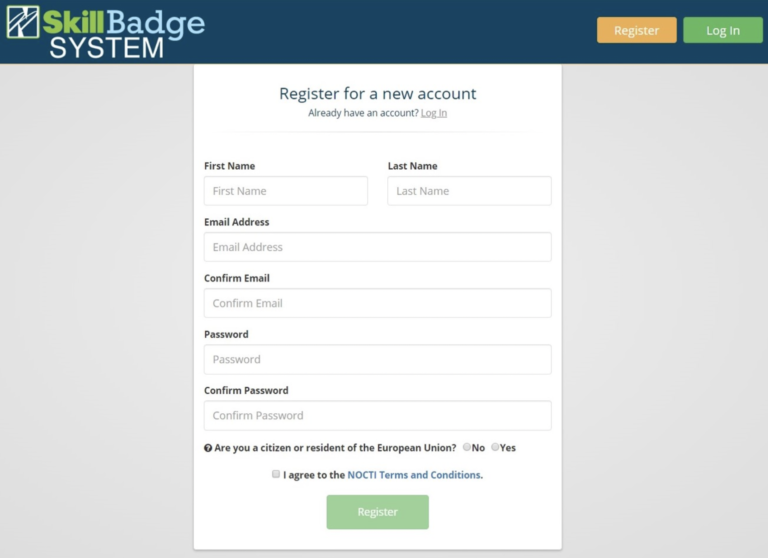
If registering, fill out the entire form. [HINT: Write down your password in a private location or use a password that you have memorized.]
Answer ‘No’ to the question ‘Are you a citizen or resident of the European Union?’ Check the box next to ‘I agree to the NOCTI Terms and Conditions.’
Click the green ‘Register’ button.
Accessing the Locker
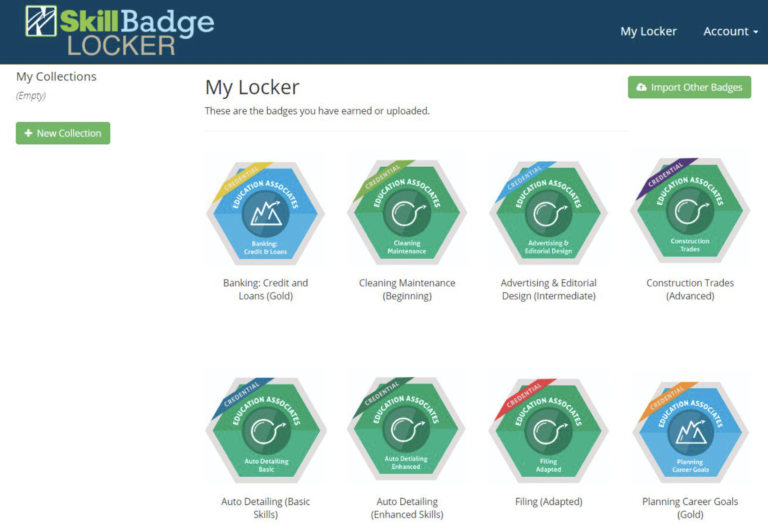
You are now in the locker which houses all of your digital badge credentials.
If this is your first time in your locker, you probably only have one credential.
Click on the credential you wish to view.
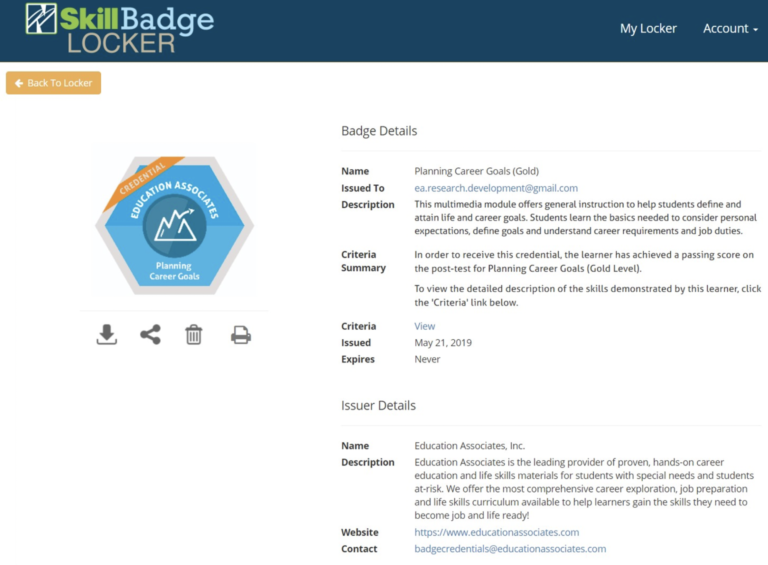
The ‘Badge Details’ screen displays all the specifications of your digital badge credential.
The ‘Description’ and ‘Criteria Summary’ sections explain what you have accomplished to earn the credential.
Click the ‘View’ link next to ‘Criteria’ to see a full list of the skills you have mastered to earn this credential.
Exporting Badges
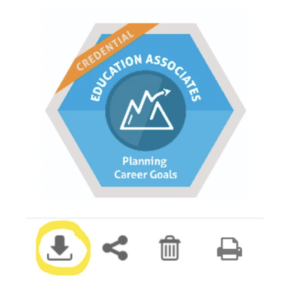
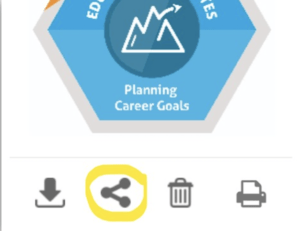
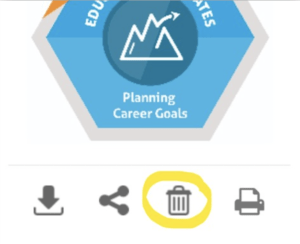
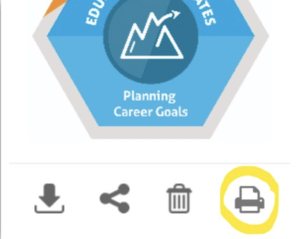
There are four icons under the digital badge logo. These allow you to manipulate and share the information in the digital badge credential.
The icon on the far left allows you to download the digital badge logo.
[Note: This function downloads the image ONLY, not the description.]
The icon second from the left allows you to share the digital badge credential details with people like your friends, family and employers.
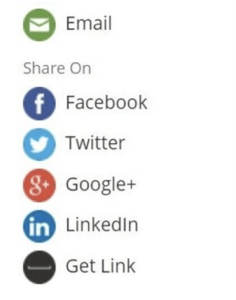
Once you click on the icon to share the digital badge credential, a pop-out menu gives you different methods for sharing the details of your credential.
Some of the more popular sharing methods:
‘Email’ copies a link to the credential to an outgoing email where you can specify recipients.
‘Facebook’ shares your credential to your personal Facebook page.
‘Get Link’ generates a pop-up window with a URL (web address) to your credential. You can cut and paste this into a browser or email.
The icon of the trash can allows you to PERMANENTLY delete the digital badge credential. [NOTE: This cannot be undone.]
The icon of the printer takes you to a screen to print the details of the digital badge credential.
Support
If you have any questions or concerns with using this product, please feel free to reach out to us at:
800-626-2950